

 Alexandro
Table of Contents
To upload a YouTube video from the command line, install the PublishQ CLI, log in once in your browser, then run three commands: pq accounts list --platform YOUTUBE to get your channel's account ID, pq media upload --file ./video.mp4 to send the file, and pq posts create --content "Your title" --account <id> --media-id <id> --publish-now to put it on YouTube. You connect your channel to PublishQ once, and you never create a Google Cloud project, register an OAuth client or wait on API quota.

Every recipe below is a heading, a code block and one line of explanation. Every command prints JSON, so each one pipes into jq or another command. The full flag reference lives in the CLI docs.
Install and log in
npm install -g @publishq/cli@latest
pq login
pq login prints a link and a code, opens the link if the machine has a browser, and saves the login to ~/.publishq/config.json once you click Approve.
Log in from a server or an agent
pq login --no-wait
# approve the link on any device, then:
pq login
--no-wait prints the link and code and exits right away, which suits SSH sessions and coding agents that run one command at a time.
Use an API key on CI or a server
pq auth set --key "pq_live_..."
# or, with nothing written to disk:
export PUBLISHQ_API_KEY="pq_live_..."
Create the key under API Keys in your PublishQ dashboard with the media:write, posts:write and accounts:read scopes, which cover every recipe here.
Find your channel ID
pq accounts list --platform YOUTUBE | jq '.accounts[] | {id, platformName, platformUserId}'Pass the id (a PublishQ UUID) to --account; platformUserId is the UC... channel ID YouTube shows you, handy for telling two channels apart.
Upload and publish as unlisted
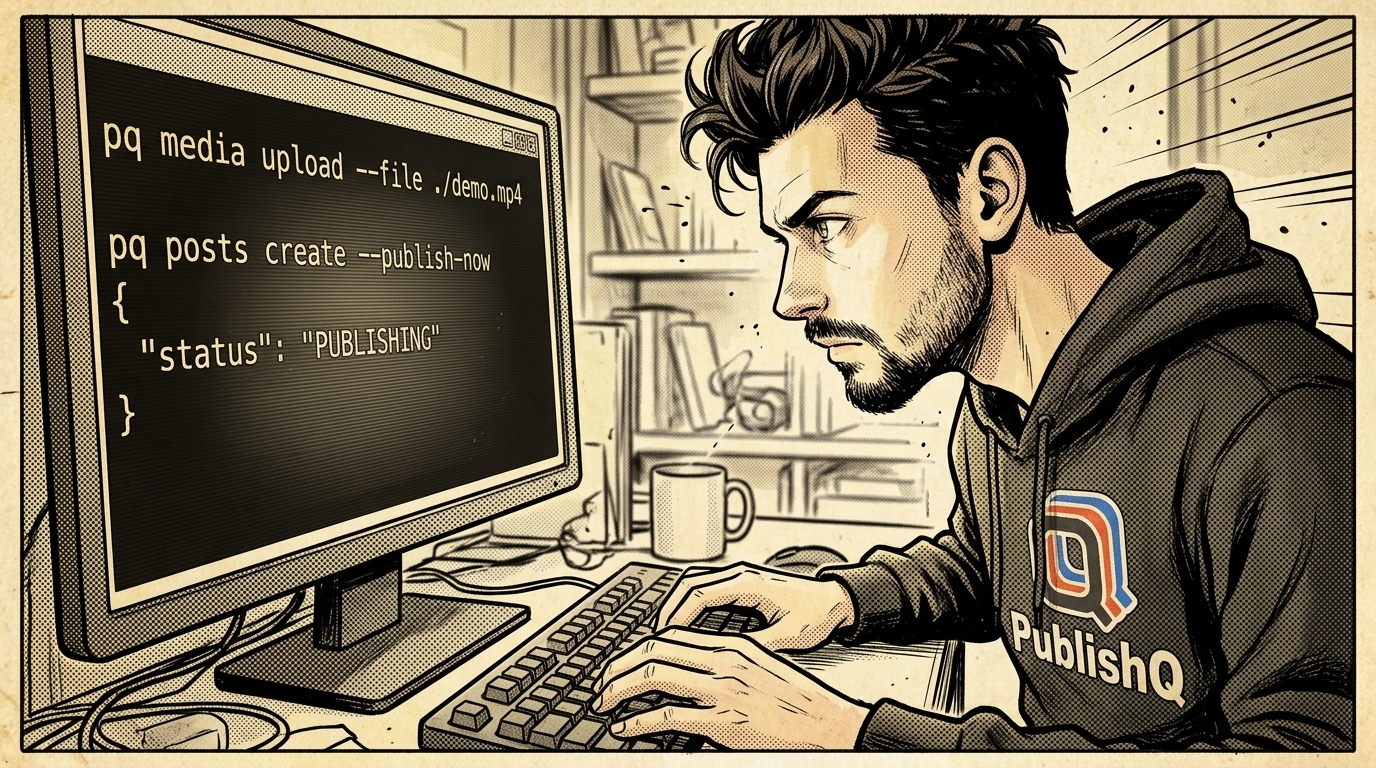
MEDIA=$(pq media upload --file ./demo.mp4 | jq -r .id)

pq posts create --content "Release 2.4 walkthrough" --media-id "$MEDIA" \
  --accounts-json '[{"accountId":"f0e1d2c3-b4a5-6789-0123-456789abcdef","platformSpecificSettings":{"privacyStatus":"unlisted"}}]' \
  --publish-now
Without privacyStatus the video goes out public, so set it whenever you want to check the result before anyone else sees it.
Schedule an upload
pq posts create --content "Release 2.4 walkthrough" \
  --account f0e1d2c3-b4a5-6789-0123-456789abcdef \
  --media-id "$MEDIA" --scheduled-at 2026-12-01T09:00:00Z
--scheduled-at takes an ISO 8601 time; leave out both it and --publish-now and the post waits in PublishQ as a draft. You can still edit or cancel a scheduled post with pq posts update or pq posts delete until it goes out. The YouTube scheduler shows the same queue in the browser.
Set description, tags and category
pq posts create --content "Rendering 4K video on a laptop" --media-id "$MEDIA" \
  --accounts-json '[{
    "accountId": "f0e1d2c3-b4a5-6789-0123-456789abcdef",
    "platformSpecificSettings": {
      "description": "Settings, timings and the config file are linked below.",
      "tags": ["ffmpeg", "rendering", "linux"],
      "categoryId": "28",
      "madeForKids": false
    }
  }]' --publish-now
--content is the title (100 characters at most, no < or >), and --accounts-json carries the rest; it replaces --account, so use one or the other. Category 28 is Science & Technology. The YouTube limits page lists the length caps for each field.
Add a custom thumbnail
THUMB=$(pq media upload --file ./thumb.jpg | jq -r .id)

pq posts update 9f8e7d6c-5b4a-3210-fedc-ba0987654321 \
  --accounts-json "[{\"accountId\":\"f0e1d2c3-b4a5-6789-0123-456789abcdef\",\"platformSpecificSettings\":{\"thumbnailMediaId\":\"$THUMB\"}}]"
This swaps the thumbnail on a draft or scheduled post and leaves every other setting alone; use a JPEG or PNG, ideally 1280x720. YouTube only accepts custom thumbnails from verified channels1. If it refuses one, the video still publishes and the post tells you why.
Upload into a folder
pq media upload --file ./ep12.mp4 --folder "Channel A/Episodes"
pq media list --folder "Channel A" --include-subfolders
Uploading into a path that does not exist creates the folder, and it shows up in the media library in the web app too. See media folders for move, rename and delete.
Upload a whole folder with a bash loop
ACCOUNT=f0e1d2c3-b4a5-6789-0123-456789abcdef
i=1
for f in ./renders/*.mp4; do
  id=$(pq media upload --file "$f" --folder "Channel A/Queue" | jq -r .id)
  when=$(date -u -d "+$i day" +%Y-%m-%dT15:00:00Z)
  pq posts create --content "$(basename "$f" .mp4)" --account "$ACCOUNT" \
    --media-id "$id" --scheduled-at "$when" | jq -r '"\(.id) \(.scheduledAt)"'
  i=$((i+1))
done
Each file becomes its own post, one per day at 15:00 UTC, titled after the file name. The date -d syntax is GNU; on macOS install coreutils and use gdate.
Run it from GitHub Actions
name: publish-video
on:
  workflow_dispatch:
  schedule:
    - cron: "0 14 * * 5"
jobs:
  upload:
    runs-on: ubuntu-latest
    env:
      PUBLISHQ_API_KEY: ${{ secrets.PUBLISHQ_API_KEY }}
    steps:
      - uses: actions/checkout@v4
      - uses: actions/setup-node@v4
        with:
          node-version: 24
      - run: npm install -g @publishq/cli@latest
      - run: |
          id=$(pq media upload --file ./out/weekly.mp4 | jq -r .id)
          pq posts create --content "Weekly build notes" \
            --account ${{ vars.YT_ACCOUNT_ID }} --media-id "$id" --publish-now
Store the key as a repository secret (Settings > Secrets and variables > Actions)2, and the CLI reads PUBLISHQ_API_KEY from the environment, so nothing lands on the runner's disk.
Run it from cron
# crontab -e
0 9 * * 1 . $HOME/.publishq.env && $HOME/bin/monday-upload.sh >> $HOME/upload.log 2>&1
Keep export PUBLISHQ_API_KEY=pq_live_... in ~/.publishq.env with chmod 600, and the script can be the loop above.
Read the JSON output with jq
POST=$(pq posts create --content "Quick test" --account "$ACCOUNT" \
  --media-id "$MEDIA" --publish-now | jq -r .id)

pq posts get "$POST" | jq '{status, accounts: [.accounts[] | {status, externalUrl, errorMessage}]}'
The post status moves from PUBLISHING to PUBLISHED (or FAILED), and each account's externalUrl is the YouTube link once it is live. Failed commands print JSON to stderr and exit 1, so set -e stops a script at the first error.
How this compares with Google's own route
You can upload from a terminal with Google's tools too. You register an application in the Google Cloud console, create OAuth credentials, save them as client_secrets.json, and run a script such as Google's upload_video.py sample, which asks for the youtube.upload scope3. A new project gets 100 videos.insert calls a day by default, and asking for more means passing a compliance audit and filing the Audit and Quota Extension form4. Setting a thumbnail is a separate thumbnails.set call that costs 50 units from the daily 10,0005. That route is fine if you want to own the integration. If you only want the video on your channel, the PublishQ CLI skips the project, the credentials file and the quota request. The YouTube API docs show the same calls over REST.
Coding agents run the same commands
Claude Code, Cursor and Codex all have a terminal, so they can run every recipe on this page. Ask Claude Code to "upload every mp4 in ./renders to my YouTube channel as unlisted, one a day" and it can write and run the loop above. Log the agent in with pq login --no-wait so it hands you the approval link instead of blocking on it. If your agent speaks MCP, the YouTube MCP server exposes the same actions as tools, and this walkthrough shows it from Claude Code.
| Agent | YouTube setup page |
|---|---|
| Claude Code | publishq.com/claude-code/youtube |
| Cursor | publishq.com/cursor/youtube |
| Codex | publishq.com/codex/youtube |
| Gemini CLI | publishq.com/gemini-cli/youtube |
| Kiro | publishq.com/kiro/youtube |
| Claude Cowork | publishq.com/claude-cowork/youtube |
| Manus | publishq.com/manus/youtube |
| Hermes Agent | publishq.com/hermes-agent/youtube |
| OpenClaw | publishq.com/openclaw/youtube |
| Muse | publishq.com/muse/youtube |
For any other agent, open https://publishq.com/agents and paste the line at the top of that page into your agent. It sets itself up and sends you a link to approve the login in your browser.

Start uploading
The CLI, the API and the MCP server are on every plan, the Free plan included, and files up to 4 GB go through the same pq media upload command. The YouTube CLI page has more examples. Create your PublishQ account, connect your channel, and your first upload is three commands away.
Footnotes
-
Add video thumbnails on YouTube - YouTube Help (2026-11) - custom thumbnails need a verified account ↩
-
Using secrets in GitHub Actions - GitHub Docs (2026-11) - where repository secrets are created ↩
-
Upload a Video - YouTube Data API (2026-11) - app registration, client_secrets.json, OAuth and the upload_video.py sample ↩
-
Quota and Compliance Audits - YouTube Data API (2026-11) - default 100 videos.insert calls a day, audit required for more quota ↩
-
Quota Calculator - YouTube Data API (2026-11) - thumbnails.set costs 50 units, 10,000 units a day for other endpoints ↩