

 Alexandro
Table of Contents
To bulk upload YouTube videos, put the files in one folder on your computer, then ask your agent (Claude Code, Codex or Cursor) or run the PublishQ CLI to upload them into a PublishQ media folder and schedule one per day. You get back a list of what was scheduled: the file, its title, the date it goes live and a post ID. Your channel is connected to PublishQ once, and the uploads go through PublishQ, so there is no Google Cloud project to create and no API access to request.

What YouTube Studio already does in bulk
Studio handles part of this by hand. You can select up to 15 videos in one upload, and then you click into each file to fill in its details.1 Scheduling is set per video: on the upload page you choose scheduled or private, then pick a date, time and time zone on the Schedule card.2 Once the videos are up, the Content page lets you tick several of them and change title, description, tags, visibility and a few other fields at once.3
That is fine for a handful of videos. At 40 videos with 40 different titles it turns into an afternoon of clicking, and that is usually when people start writing a script against the YouTube Data API. A script means a Google Cloud project, OAuth setup, and a default allowance of 100 videos.insert calls per day for that project.4 Getting more than the default requires passing a compliance audit first.5 PublishQ removes that whole step: you connect the channel and upload through PublishQ's API, CLI or MCP server.
The checklist
Get the files ready
- Put every video for the batch in one folder. Name them so they sort in posting order, like
01-intro.mp4,02-setup.mp4. - Add the text. Either a
.txtfile next to each video with the same name (first line is the title, everything after it is the description), or onevideos.csvwithfile,title,descriptioncolumns. - Keep titles to 100 characters with no
<or>. PublishQ refuses a longer title instead of trimming it, so a bad title stops before anything is scheduled. Descriptions can run to 5,000 characters. The YouTube limits page has the rest. - Files can be up to 4 GB each.
Connect the channel and sign in
Create an account, connect your YouTube channel in the web app, then install the CLI and sign in:
npm i -g @publishq/cli
pq login
pq accounts list --platform YOUTUBE
Copy the id of your channel from the JSON. That is the account ID every scheduled post needs.
Pick a media folder for the batch
Media folders keep a big batch from turning into a mess in your library. A folder is a path such as Channel A/Shorts, with names separated by /. You never create one on its own: uploading or moving a file into a new path creates it. The same folders show in the media library in the web app, so whatever an agent files away is where you expect it.
| Task | CLI | MCP tool |
|---|---|---|
| List folders | pq media folders | publishq_list_media_folders |
| Files in a folder | pq media list --folder "Channel A" | publishq_list_media |
| Move files | pq media move <id> --folder "Channel A/Shorts" | publishq_move_media |
| Rename | pq media folders rename "Channel A/Shorts" Reels | publishq_rename_media_folder |
| Delete | pq media folders preview-delete "Channel A", then delete | publishq_preview_media_folder_deletion, publishq_delete_media_folder |
Posts point at media IDs, not folders, so renaming or moving a folder never changes a scheduled video. Deleting a folder takes two steps: the preview tells you how many files it holds, and the delete only runs with that number. Files that a draft or scheduled post still uses are kept. The media folders docs cover the path rules.
Upload and schedule with an agent
Add PublishQ to your agent once. In Claude Code:
claude mcp add --transport http publishq https://publishq.com/mcpThen run /mcp and choose Authenticate. In Codex, run npx @publishq/cli@latest login, then codex mcp add publishq -- npx -y @publishq/mcp@latest. In Cursor, add {"mcpServers":{"publishq":{"url":"https://publishq.com/mcp"}}} to ~/.cursor/mcp.json. The MCP docs list the other clients.
Now give it the folder. A prompt that works:
Read videos.csv in ./december-batch (columns: file, title, description).
First check every title is 100 characters or less and has no < or >.
Stop and tell me if any fail.
Then upload each file to PublishQ into the media folder
"Channel A/Long-form/December".
Schedule them to my YouTube account "Channel A", one per day at
15:00 UTC starting 2026-12-07, in file order. Use the CSV description,
privacy public, madeForKids false, category 28.
When you are done, give me a table: date, title, post ID, status.
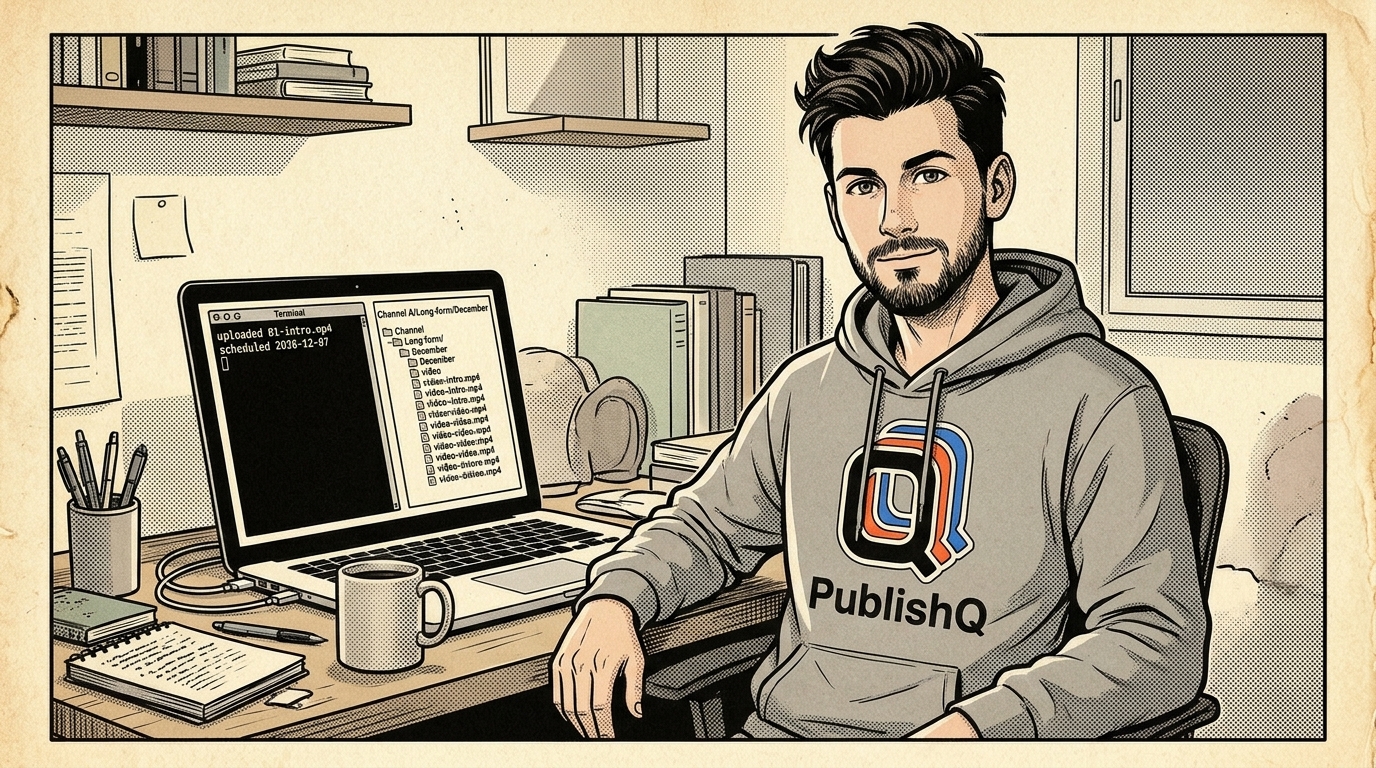
For .txt files instead of a CSV, change the first line to "For each .mp4 in ./december-batch, read the .txt file with the same name: line one is the title, the rest is the description." The agent calls publishq_upload_media and publishq_create_post once per video. A longer walkthrough of the YouTube MCP setup is in uploading to YouTube from Claude Code.
Upload and schedule with plain pq commands
If you would rather run it yourself, this loop reads the .txt files, uploads each video into a folder and schedules one per day. Every pq command returns JSON, so jq pulls out the IDs. It uses GNU date; on macOS install coreutils and use gdate.
ACCOUNT=f0e1d2c3-b4a5-6789-0123-456789abcdef
START="2026-12-07 15:00 UTC"
n=0
for f in ./december-batch/*.mp4; do
  txt="${f%.mp4}.txt"
  title=$(head -n 1 "$txt")
  desc=$(tail -n +2 "$txt")
  media=$(pq media upload --file "$f" --folder "Channel A/Long-form/December" | jq -r '.id')
  when=$(date -u -d "$START + $n days" +%Y-%m-%dT%H:%M:%SZ)
  accounts=$(jq -n --arg a "$ACCOUNT" --arg d "$desc" \
    '[{accountId:$a,platformSpecificSettings:{description:$d,privacyStatus:"public",madeForKids:false,categoryId:"28"}}]')
  pq posts create --content "$title" --media-id "$media" \
    --scheduled-at "$when" --accounts-json "$accounts" \
    | jq -c '{id, status, scheduledAt, content}'
  n=$((n+1))
done
Each line it prints is one scheduled video. Save the output and you have your list. In CI, set PUBLISHQ_API_KEY=pq_live_... instead of running pq login. The CLI docs list every flag.
Check the queue
pq posts list --limit 50 returns your posts with their status and scheduledAt. Anything waiting to go out reads SCHEDULED. The same posts sit on the calendar in the web app, which is the easiest way to spot a gap or a double day. The YouTube scheduler page shows how that looks.
Edit or cancel before they go out
Scheduled posts can be changed or cancelled until they publish.
pq posts update <post-id> --content "A better title"
pq posts update <post-id> --scheduled-at 2026-12-12T15:00:00Z
pq posts delete <post-id>
A custom thumbnail can be added or swapped on its own with --accounts-json and a thumbnailMediaId. YouTube only accepts custom thumbnails on verified channels; on other channels the video still publishes and PublishQ tells you why the thumbnail was refused. With an agent you can just say "move Thursday's video to Saturday" or "cancel the one called Setup part 2", and it uses publishq_update_post or publishq_delete_post.
Run more than one channel
Put each channel in its own workspace, and give each one its own folder tree, like Channel A/... and Channel B/Shorts. Then list the right account for each batch:
pq workspaces list
pq accounts list --workspace-id <workspace-id> --platform YOUTUBE
Tell your agent which workspace a batch belongs to and it picks the account from there. The loop above works the same way with a different ACCOUNT.

Other agents
| Agent | YouTube setup |
|---|---|
| Claude Code | publishq.com/claude-code/youtube |
| Codex | publishq.com/codex/youtube |
| Cursor | publishq.com/cursor/youtube |
| Claude Cowork | publishq.com/claude-cowork/youtube |
| Gemini CLI | publishq.com/gemini-cli/youtube |
| Kiro | publishq.com/kiro/youtube |
| Manus | publishq.com/manus/youtube |
| Hermes Agent | publishq.com/hermes-agent/youtube |
| OpenClaw | publishq.com/openclaw/youtube |
| Muse | publishq.com/muse/youtube |
For any other agent, open https://publishq.com/agents and paste the line at the top of that page into your agent. It sets itself up and sends you a link to approve the login in your browser.
Schedule your first batch
The API, CLI and MCP server are on every plan, the Free plan included, so you can try this with three test videos set to unlisted before you queue a month of them. Create your PublishQ account, connect your channel and hand your agent the folder.
Footnotes
-
Upload YouTube videos (2026-11) - Studio uploads up to 15 videos at a time, with details edited per file ↩
-
Schedule video publish time (2026-11) - scheduling a video from the upload page via scheduled or private visibility and the Schedule card ↩
-
Make bulk changes to videos (2026-11) - editing title, description, tags, visibility and other fields on several videos at once ↩
-
Quota calculator - YouTube Data API (2026-11) - default allocation of 100 videos.insert calls per day per project ↩
-
Quota and compliance audits (2026-11) - extra quota beyond the default requires completing an audit ↩