
 Alexandro
Table of Contents
To upload to YouTube from ChatGPT or Claude, add PublishQ as a connector with the URL https://publishq.com/mcp and approve it in your browser. Then attach your video, or paste a public link to it, and type "upload this to my YouTube channel as unlisted with the title Spring sale walkthrough". The chat hands the file to PublishQ, and PublishQ uploads it to the channel you connected. You never open Google Cloud, never apply for API access and never wait for a quota review.
You do one thing first: create a PublishQ account and connect your YouTube channel there. After that, everything happens in the chat.
The two setups side by side
Both apps call it something slightly different, but the steps line up almost one to one.
| Step | ChatGPT | Claude |
|---|---|---|
| Where to go | chatgpt.com/plugins, on the web | Customize > Connectors |
| Add it | Plus button > Add custom MCP server | Add > Add custom connector |
| Fill in | Name: PublishQ. Server URL: https://publishq.com/mcp. Authentication: OAuth | Name: PublishQ. URL: https://publishq.com/mcp. Keep the settings marked Detected |
| Confirm | I understand and want to continue > Create as a plugin, then install it | Add, then Connect |
| Approve | PublishQ opens in your browser. Sign in, click Approve | Same |
| Use it in a chat | Type @ and pick PublishQ | + > Connectors, PublishQ switched on |
Walkthrough 1: ChatGPT
OpenAI's current instructions add your own server as a plugin, on ChatGPT on the web. If you use ChatGPT through your company, your workspace's permissions decide whether you can add one.1
- Go to chatgpt.com/plugins. You see a page of plugins with a plus button near the top.
- Click the plus button and choose Add custom MCP server. A form opens with a name box, an optional description and a Connection section.1
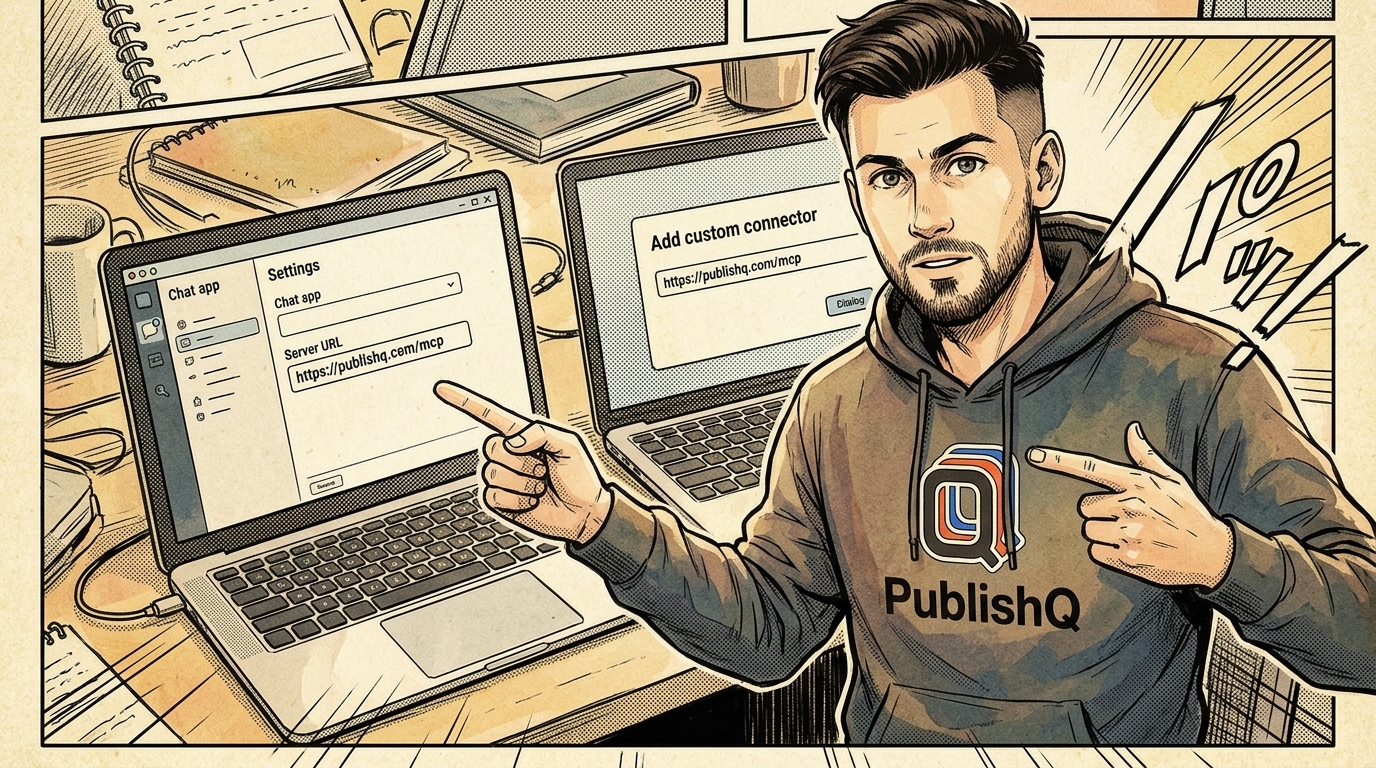
- Type PublishQ as the name. Under Connection, paste
https://publishq.com/mcpinto Server URL. - Under authentication, pick OAuth. PublishQ signs you in through your browser, so there is no key to paste.
- A risk warning appears. Read it, select I understand and want to continue, then select Create as a plugin.1
- ChatGPT lists the tools it found, with names like
publishq_list_accountsandpublishq_create_post. Install the plugin from your personal plugins.1 - When ChatGPT connects, a PublishQ page opens in your browser. Sign in, choose what ChatGPT may do and click Approve.
- Start a new chat, type @ and pick PublishQ from the list.1 Ask "which YouTube channels can you see?" and it should name yours.
If you would rather hand ChatGPT a monthly upload that runs while your laptop is shut, a ChatGPT dot can do it on its own cloud computer.
Walkthrough 2: Claude
This works on claude.ai, the Claude desktop app and the mobile apps, and the same connector shows up in Cowork.2 Anthropic lets every plan add a connector by URL. The Free plan allows one custom connector, and on Team and Enterprise an Owner adds it for everyone and each person then connects with their own account.3
- Open Customize > Connectors. You see the connectors you already have and an Add button.
- Select Add, then Add custom connector. A small dialog asks for a name and a server URL.3
- Type PublishQ as the name, paste
https://publishq.com/mcpand click Continue. - Claude reads the server's sign-in settings and marks them Detected. Leave them as they are.3
- Click Add. The connector appears with a Connect button. Click it.
- PublishQ opens in your browser. Sign in, choose what Claude may do and click Approve.
- In a chat, click the + button at the bottom left, open Connectors and check that PublishQ is switched on.3
How the video gets to PublishQ
The hosted server takes the video in one of three ways. They work the same in both apps.
- Attach the file to your message. PublishQ's upload tool accepts a file attached in the chat.
- Paste a public link that points straight to the video file.
- Name a video already in your PublishQ library. Upload it in the dashboard first (bulk upload works there), keep it in a folder like
Channel A/Uploads, then say "use the video called launch-final.mp4 in Channel A/Uploads". See the media library.
Files up to 4 GB each are accepted. For an hour-long recording that sits in a folder on your computer, Claude Cowork can read it from an attached folder and send it straight to PublishQ, so the file never goes through the chat.
What you can ask for
Talk to it the way you would brief a person. Here is a full request:
Upload the attached video to my YouTube channel as unlisted. Title: "How we pack 200 orders a day". Description: a short summary of the video plus a link to our shop. Use the attached image as the thumbnail. Category Science and Technology, not made for kids. Then post it to TikTok too with a shorter caption.
| You say | What happens |
|---|---|
| A title | Becomes the YouTube title. Up to 100 characters, and a longer one is refused instead of cut off |
| A description | Up to 5,000 characters |
| Unlisted, private or public | Sets the privacy. With nothing said, it goes out public |
| "Schedule it for Friday at 9am my time" | Scheduled in PublishQ. You can edit or cancel it until it goes out |
| An image for the thumbnail | JPEG or PNG up to 50 MB, 1280x720 works best |
| Tags, a category, made for kids | Set on the same upload |
| "Post it to TikTok too" | Same post with its own caption. The chat first reads which TikTok privacy options your account allows |
Unlisted is the useful one here. Anyone with the link can watch an unlisted video, but it stays off your channel page and out of YouTube search.4 YouTube only lets verified accounts use custom thumbnails.5 If yours is refused, the video still publishes and PublishQ tells you why. Check your title length against the YouTube limits page, and see how it will look with the YouTube post previewer.
The API, CLI and MCP server are on every plan, the Free plan included.
Keeping it safe
A chat that can upload to your channel deserves a few habits.
- Ask for unlisted first. Watch it from the link the chat gives you, then switch it to public in YouTube Studio under Content > Visibility.4
- Or ask for a draft. Say "save it as a draft, don't publish". A draft waits in PublishQ until you schedule or publish it.
- Read the approval prompt. ChatGPT asks before any action that changes something, and lets you expand the call to see exactly what it will send. You can tell it to remember yes for one tool, but only for that conversation.1 Claude shows tool approval requests too, and Anthropic suggests choosing Always allow only for servers you trust.3
- Switch off tools you don't need. ChatGPT has a per-app page where you toggle tools.1 In Claude, set a tool to Blocked under Customize > Connectors.3 Leave only listing accounts and creating posts on, and the chat can upload but never delete.
Why not connect Google's API yourself
You could. It means a Google Cloud project, a user sign-in for every write, and a default quota of 100 video uploads a day per project, with a form to fill in if you need more.6 PublishQ carries all of that. You connect your channel once and ask.
Using a coding agent instead
The same server works in coding agents. In Claude Code, run claude mcp add --transport http publishq https://publishq.com/mcp, then open /mcp and choose Authenticate. In Cursor, add {"mcpServers":{"publishq":{"url":"https://publishq.com/mcp"}}} to ~/.cursor/mcp.json. In Codex, run npx @publishq/cli@latest login, then codex mcp add publishq -- npx -y @publishq/mcp@latest. The YouTube MCP server guide for Claude Code covers that route in depth, and the MCP docs list every tool.
Each agent has its own YouTube page:
| Agent | YouTube guide |
|---|---|
| Claude Cowork | publishq.com/claude-cowork/youtube |
| Claude Code | publishq.com/claude-code/youtube |
| Cursor | publishq.com/cursor/youtube |
| Codex | publishq.com/codex/youtube |
| Muse | publishq.com/muse/youtube |
| OpenClaw | publishq.com/openclaw/youtube |
| Hermes Agent | publishq.com/hermes-agent/youtube |
| Manus | publishq.com/manus/youtube |
| Kiro | publishq.com/kiro/youtube |
| Gemini CLI | publishq.com/gemini-cli/youtube |
For any other agent, open publishq.com/agents and paste the line at the top of that page into your agent. It sets itself up and sends you a link to approve the login in your browser.
Start with one unlisted upload
Pick a short video you don't mind testing with, add the connector, and ask for an unlisted upload. Once the link plays, you know the whole path works. Create your PublishQ account and connect your channel to get going.
Footnotes
-
Add custom MCP server (2026-11) - ChatGPT Plugins > Add custom MCP server steps, web only, workspace permissions, @ to use, per-app tool toggles, write actions need confirmation, remembered approval per conversation ↩ ↩2 ↩3 ↩4 ↩5 ↩6 ↩7
-
Get started with custom connectors using remote MCP (2026-11) - custom connectors work across claude.ai, Claude Desktop, Cowork and the mobile apps ↩
-
Add a connector that isn't in the directory (2026-11) - Customize > Connectors > Add custom connector steps, Detected settings, plan availability, one custom connector on Free, Owners on Team and Enterprise, + > Connectors toggle, Always allow and Blocked tools ↩ ↩2 ↩3 ↩4 ↩5 ↩6
-
Change video privacy settings (2026-11) - what unlisted means and how to change visibility in YouTube Studio ↩ ↩2
-
Add video thumbnails on YouTube (2026-11) - custom thumbnails need a verified account ↩
-
YouTube Data API overview (2026-11) - write operations need user authorization, default quota of 100 videos.insert calls a day, quota extension form ↩